
How to host a quiz at work, in the room or online
Seven steps to a quiz that starts on time, keeps everyone playing, and leaves you with something useful.
The short version Decide what the quiz is for, write 10-15 questions in short rounds, use a tool that lets people answer on their own phones, and keep the whole thing under 20 minutes with the scoreboard on the big screen.
Decide what the quiz is for
The goal sets the length, the tone and what you do with the results. A work quiz usually does one of three jobs:
- Warm up a room - an opener for a kickoff, all-hands or workshop. Keep it light and short.
- Check what stuck - after onboarding, a training session or a product launch. Questions map to what was taught.
- Celebrate - an end-of-year party or team social. Company trivia and themed rounds.
Choose in the room, online or hybrid
In the room, put the quiz on the big screen and let everyone answer on their phones. Online, share your screen in Zoom, Teams or Google Meet and have players join on a phone or a second tab.
Hybrid works best when everyone - in the room and remote - answers on their own device, so nobody depends on a colleague shouting out answers for them.
Write questions people can answer
- One fact per question. If you need “and” in the question, split it in two.
- Three or four options, with wrong answers that are plausible, not silly.
- Mix difficulty inside each round so everyone scores early.
- Use images for flags, places and people - they are faster to read than text.
- Skip trick questions. They feel clever to write and unfair to answer.
A good shape for most teams: a warm-up round everyone can score in, a general knowledge round, and a finale about your own company or what the team just learned.
Set the length
Aim for 10-15 questions with 20-30 seconds each. With an intro and the podium, that lands at 15-20 minutes. As a meeting opener, cut it to three to five questions and five minutes.
Pick a quiz tool
For a live quiz at work, look for a tool that lets you:
- let players join with a code from any browser, with no app or account
- show a live scoreboard on the shared screen
- build questions quickly - ideally with AI drafting from a topic
- see results per question afterwards
- meet your organization’s data and security requirements
Run it on the day
A simple host script keeps it moving:
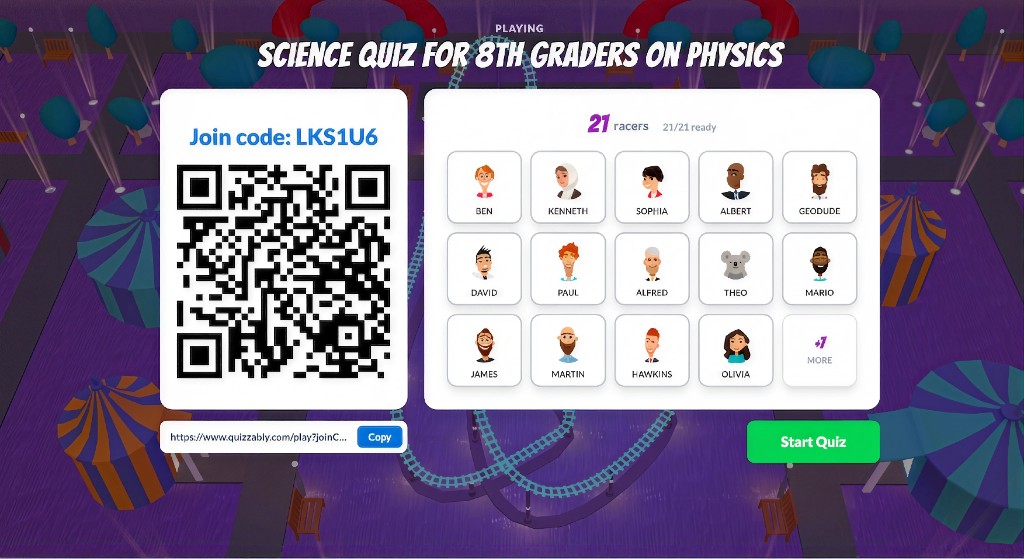
- Get everyone in. Put the room code on screen and give people a minute to join while you explain the rules.
- Play a practice question. It irons out connection issues before points count.
- Narrate the leaderboard. Call out overtakes and close finishes - this is where the energy comes from.
- Pause between rounds for ten seconds of banter, not five minutes.
- Finish on the podium and congratulate the winners by name.
Use the results
For a social quiz, share the winners and move on. For a learning quiz, the results are the point: the questions most people got wrong are your knowledge gaps, and they tell you exactly what to revisit next.
Tips for a virtual team quiz
- Ask people to keep the meeting on one screen and the quiz on their phone.
- Mute everyone during questions; open the floor for reactions between rounds.
- Give remote teams a breakout room between rounds if you are playing in teams.
- Keep it short - attention online drops faster than in a room.
Questions people ask
How long should a quiz at work be?
About 15-20 minutes for a standalone quiz: 10-15 questions at 20-30 seconds each, plus an intro and the podium. A meeting warm-up needs only three to five questions.
How do you run an online quiz for a team meeting?
Share the quiz host screen in your video call, ask players to join on their phones with the room code, play a practice question, then run short rounds with the scoreboard visible between them.
What is the easiest way to make an interactive quiz?
Use a quiz maker with AI drafting: type a topic, review the generated questions, adjust time limits and host. With QuizRace that takes about ten minutes, and players join from a browser with no install.